
The DoorDash Merchant Portal is the website where you manage your store on DoorDash. Log in at merchant-portal.doordash.com (doordash.com/merchant gets you to the same login) with the email DoorDash set your account up with. The left-hand menu has more than a dozen sections, and in my experience four of them carry most of the weight: the Home dashboard, Customers, Financials and Marketing.
Below is the map I'd hand a new owner or manager: what each tab is for, what to check in it, and what I've learned the hard way. Tab names come from DoorDash's own portal guide. Your view depends on your role.
Quick answer
- Log in at merchant-portal.doordash.com. Forgot your password? Use "Forgot your password?" on the login page.
- Give everyone their own login under Settings > Manage Users. Owner as Business Admin, managers as Store Manager, shift staff as Store Operator.
- Daily: Ratings & reviews and error charges. Both have short windows.
- Weekly: 15 minutes on the dashboard, Operations quality, Marketing and Payouts. Monthly: your statement and a Sales report.
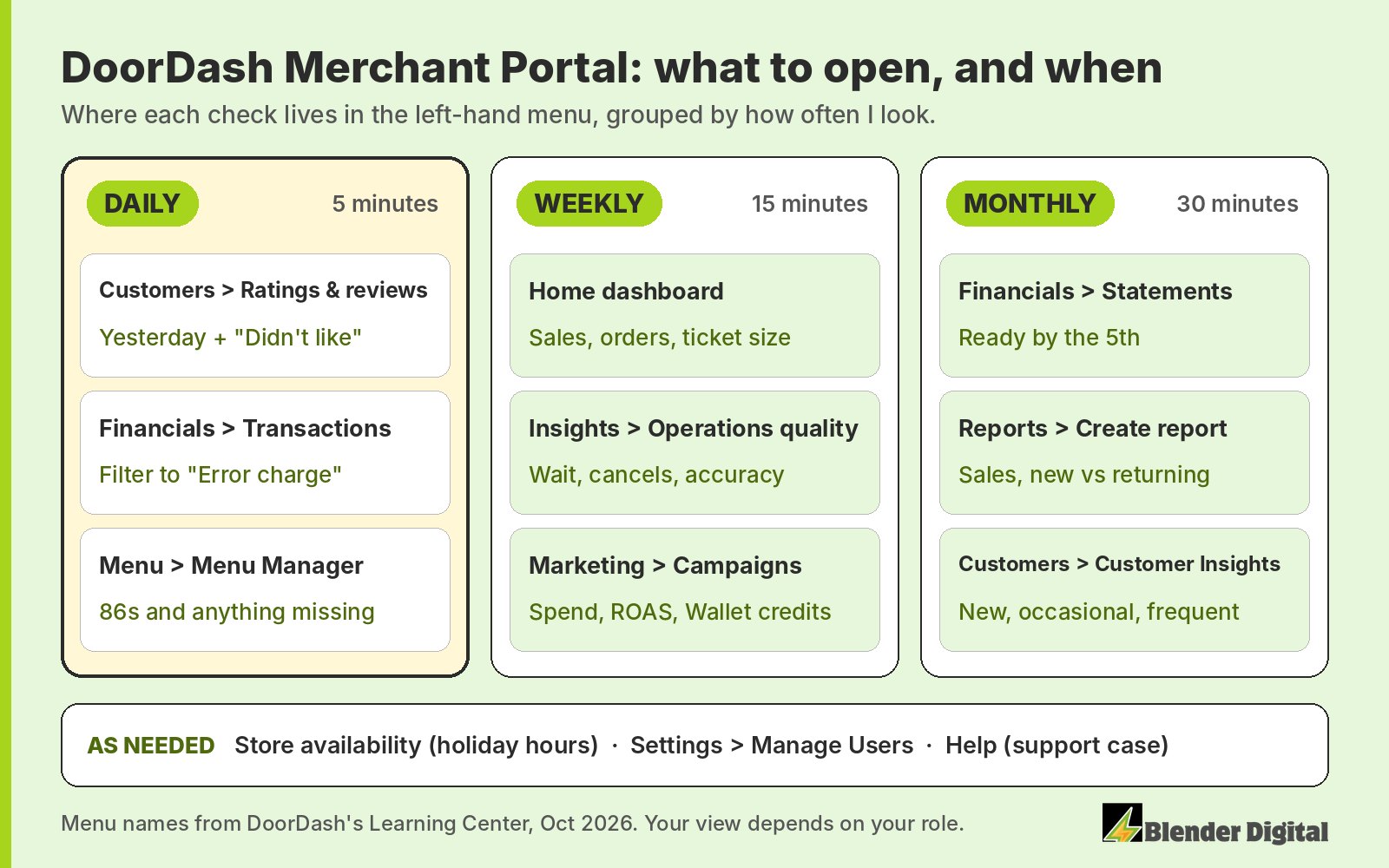
How do I log in, and who should have which role?
Go to merchant-portal.doordash.com, enter your email and password, and if you have more than one business, pick it from the business picker. A new account gets a setup email with a link to create a password. DoorDash says it will never ask for your login by phone or email, so treat any message that does as a scam (DoorDash: logging in).
To add someone, go to Settings > Manage Users, click + Add User, enter their name and email, pick a role and send the invite. The roles that matter for a single restaurant or a small group:
- Business Admin: full access to every store under the business. This is the owner.
- Store Manager: access to the stores you pick, and can add managers and operators. This is your GM.
- Store Operator: limited access to the stores you pick. Good for shift leads who only need orders and menu availability.
Keep Business Admin with the owner, and never share one login across the team. Some things need a specific role. DoorDash says disputing an error charge takes Admin or Store Manager access, and in my experience only a business admin can create a loyalty program. If you work with an outside team, keep the Business Admin role yourself and give them their own login rather than sharing yours. On DoorDash, my team prepares the disputes and the owner submits them.
Home dashboard: what is it for?
The Home page is a summary: sales, orders and ticket size for the period in the gray date box ("this month" by default), plus an Insights & Actions panel with All, Growth, Operations and Announcements tabs.
Check weekly: last week's sales, orders and average ticket.
My tip: don't trust the "vs 7 days prior" and "same day last year" comparisons. I've seen them come out wrong or wildly inflated, once showing a change of 11,000%. Write the raw numbers down and do your own month-over-month math on full calendar months.
Orders: active, scheduled and history
Orders has three views: Active (what you're making now), Scheduled (orders placed in advance) and History.
Check weekly: filter History to cancelled orders. DoorDash only pays you for a cancelled order in specific cases, for example when it was already confirmed and prepared and the cancellation wasn't your doing (DoorDash: financials). Repeat out-of-stock cancellations are a menu problem you can fix.
Menu and Menu Manager
Under Menu you'll find Menu Manager (items, modifiers, photos and out-of-stock), Menu Pricing, and for some businesses an Inventory Manager that's locked if your menu comes from a POS.
Check daily: what's marked out of stock. Weekly: items with no photo. On DoorDash, an item without a photo can't carry a BOGO, and photo coverage is one of the first things I look at in any menu.
My tip: when you 86 an item, DoorDash asks how long it'll be out (DoorDash: item availability). In my experience a quick 86 comes back on its own after about 24 hours, so if it's out for the week, pick a longer option. And if your menu syncs from Toast or another POS, edit there, not here. POS edits can change item IDs and quietly break item-level campaigns, which I learned the expensive way. More on that in why your Toast menu isn't syncing.
Store availability: hours, holidays and pausing
Two parts: Regular menu hours for each menu, and Special hours and closures for holidays, plus a "Pause all ordering channels" button.
Check before every holiday: that special hours are set ahead of time. DoorDash counts downtime during your stated open hours (DoorDash: operations quality), so wrong hours hurt you twice.
My tip: pausing in a rush is fine. Just remember to turn it back on.
Customers: Customer Insights and Ratings & reviews
Customer Insights shows your split of new, occasional and frequent customers and where they are. Ratings & reviews is where you read and answer reviews.
Check daily: in Ratings & reviews, set a custom date range for yesterday and the rating filter to "Didn't like." That shows only the bad ones in seconds. You get 7 days to reply, replies go privately to the customer, and you can attach a discount (DoorDash: reviews). The full routine is in how to keep track of your reviews.
My tip: when I last checked, Customer Insights only looked back about a month. For a longer view use Reports, or ask your account manager for 6 to 12 months. What a healthy mix looks like is in how to see new customers.
Insights and Operations quality
Insights holds your Optimization Score, Sales, Operations quality, Most Loved status and Product mix. Operations quality tracks avoidable wait, cancellations, downtime, order accuracy and rating, measured against goals based on the top 20% of DoorDash merchants (DoorDash: operations quality).
Check weekly: anything listed under "Areas requiring your attention."
My tip: DoorDash measures you against your peers here, and a kitchen that keeps making mistakes gets pushed down. The Most Loved badge is nice, but I wouldn't chase it; here's why.
Financials: transactions, payouts, statements and error charges
Three views (DoorDash: payouts and statements):
- Transactions: estimated order counts and payouts. Filter the type to "Error charge" to see what you've been charged for.
- Payouts: finalized payouts for reconciling with your bank.
- Statements: monthly statements, ready by the 5th of each month, plus tax forms.
Check daily: error charges. You can only dispute in the portal if the delivery happened within the last 14 days (DoorDash: error charges). Open the order, click Dispute Charge, pick the items and a reason. The routine I use is in how to keep up with error charges. Weekly: that the payout landed. Monthly: your statement.
My tip: divide net payout by gross sales every month. That's your payout ratio, and it's the one number I'd track if I could only track one. If your account shows a Monthly Recap, use it, because it puts net payout right on the page. Line-by-line help is in how to read your statement. Want money faster? Daily payouts are under Settings > Account Settings.
Marketing: promotions, sponsored listings, loyalty and credits
Marketing has Run a Campaign and Campaigns. The five campaign types are Sponsored Listing, Smart Campaign, Order Discount, Item Promotion (BOGO and free items) and Free Delivery (DoorDash: Marketing tab). The Marketing Wallet, top right of those pages, shows any DoorDash credits, when they expire and which campaigns they cover (DoorDash: marketing credits). Store Loyalty has its own spot in the menu if you run it, and DoorDash says changes to a loyalty program need 30 days' notice (DoorDash: Store Loyalty).
Check weekly: spend, orders and ROAS for every live campaign, and any credit about to expire. Bids and budgets are covered in how to set sponsored listing bids.
My tips: in my experience only the user who created a DoorDash campaign can edit it, so if a former manager built your BOGO, you may have to rebuild it under your own login. The exception is a co-funded campaign: edit it, don't recreate it, or you can lose the co-funding. More on credits in how to get co-funding and ad credits.
Reports: the long view
Click Create report to build Financial, Operations, Sales, Product Mix or Marketing reports, one time or on a weekly or monthly schedule. You can pull up to two years of data (DoorDash: reporting).
Check monthly: a Sales report split by new and returning customers. A finished custom report stays available for 7 days, so download it. These are the same numbers that go into the monthly report we send clients.
Settings: plan, users and payouts
Settings holds Account Settings (tablet PIN, pickup instructions, daily payouts), Pricing Plans, Store settings (name, logo, header images), Manage Users, Store communications, Bank account and Integrations.
Check quarterly: Manage Users, and remove anyone who's left. Check Pricing Plans once so you know which plan you're on. If it's Basic, read Basic vs Plus vs Premier.
Help: how do I get a human at DoorDash?
For a live order, call 855-222-8111 (24/7) and pick the merchant option, or use chat on the tablet. For account, menu or banking issues, submit a case from the Help tab (DoorDash: merchant support). Your Merchant Experience Partner (MXP) can be reached at mxpsupport@doordash.com, 8am to 4pm Pacific, Monday to Friday (DoorDash: MXP).
My tip: in the accounts I work in, the Help tab also has an option to get help from your merchant experience partner and book a call. That's usually faster than the phone for anything that isn't a live order. If you're still stuck, see what to do when you can't reach your rep.
What should I check, and how often?
| Tab | What to check | How often |
|---|---|---|
| Customers > Ratings & reviews | Yesterday's "Didn't like" reviews, replied to | Daily |
| Financials > Transactions | New error charges, still inside 14 days | Daily |
| Menu > Menu Manager | Items marked out of stock, items with no photo | Daily for 86s, weekly for photos |
| Home dashboard | Sales, orders and average ticket for last week | Weekly |
| Insights > Operations quality | Anything under "Areas requiring your attention" | Weekly |
| Marketing > Campaigns | Spend, orders and ROAS per campaign; Marketing Wallet credits | Weekly |
| Financials > Payouts | Last week's payout landed | Weekly |
| Financials > Statements | Monthly statement, net payout | Monthly |
| Reports | Sales report, new vs returning customers | Monthly |
| Store availability | Holiday hours and closures set ahead of time | Before holidays |
| Settings > Manage Users | Who has access, and remove people who left | Quarterly, and when staff change |
The weekly 15-minute portal routine
Monday morning, one store at a time.
- Home. Set the date range to last week. Write down sales, orders and average ticket in your own sheet.
- Insights > Operations quality. Read anything under "Areas requiring your attention."
- Financials > Transactions. Filter to "Error charge" and catch anything the daily check missed while it's still inside 14 days.
- Customers > Ratings & reviews. Last 7 days, "Didn't like." Reply to anything still open before the 7-day window closes.
- Marketing > Campaigns. Spend, orders and ROAS for every live campaign. Open the Marketing Wallet and note any credit about to expire.
- Menu > Menu Manager. Put back anything still marked out of stock that's back in the kitchen. Note any item without a photo.
- Orders > History. Filter to cancelled and look for a pattern.
- Financials > Payouts. Confirm last week's payout landed in the bank.
FAQ
How do I log in to the DoorDash merchant portal?
Go to merchant-portal.doordash.com (doordash.com/merchant also works), enter the email and password for your account, and pick your business if you have more than one. If you forgot your password, click "Forgot your password?" and DoorDash will email you a reset link.
How do I add a user to the DoorDash merchant portal?
Go to Settings, then Manage Users, click Add User, enter the person's name and email, choose a role (Business Admin, Store Manager or Store Operator) and click Send Invite. They get an email invitation, and you can change their role later.
Where do I see my payouts in the DoorDash merchant portal?
Go to Financials. Payouts shows finalized payouts, Transactions shows estimated payouts by order, and Statements has your monthly statement, which is ready by the 5th of each month.
Why can't I edit a DoorDash campaign?
In my experience only the user who created a DoorDash campaign can edit it, so a campaign built by a former manager or a rep may need to be rebuilt under your login. If the campaign is co-funded by DoorDash, ask your rep to change it instead of recreating it, or you can lose the co-funding.
How do I reach a human at DoorDash as a merchant?
For a live order, call 855-222-8111 and choose the merchant option. For account, menu or banking issues, submit a case from the Help tab in the portal or email your Merchant Experience Partner at mxpsupport@doordash.com, available 8am to 4pm Pacific on weekdays.
If the portal is the part of DoorDash you never have time for, that's the part we take on. We check reviews and error charges every day, run the campaigns and send a monthly report. See our services, or review management and error handling on their own. Or send me what you're seeing in your portal and I'll tell you what I'd look at first. Get in touch here.